





Quick Steps
- In your Shopify admin, click Add apps and look for Printful, or search for it in the Shopify App Store.
- Click Add app.
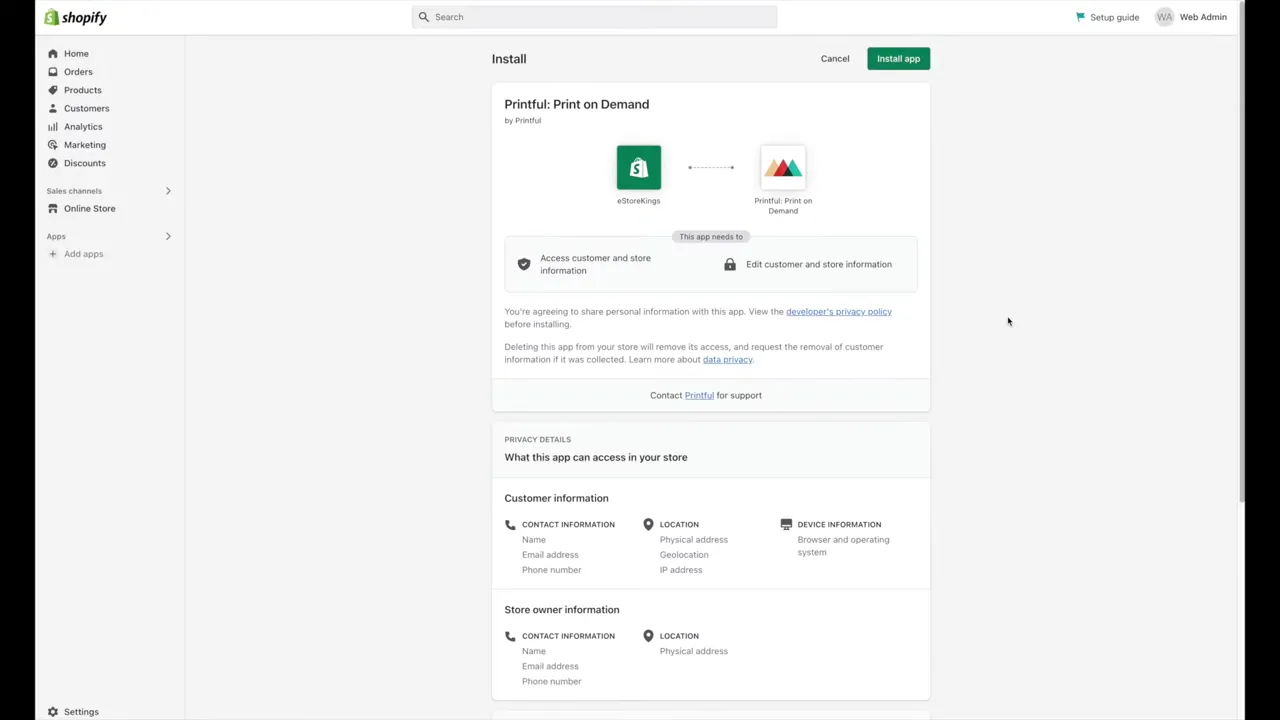
- Click Install app in the top right corner.
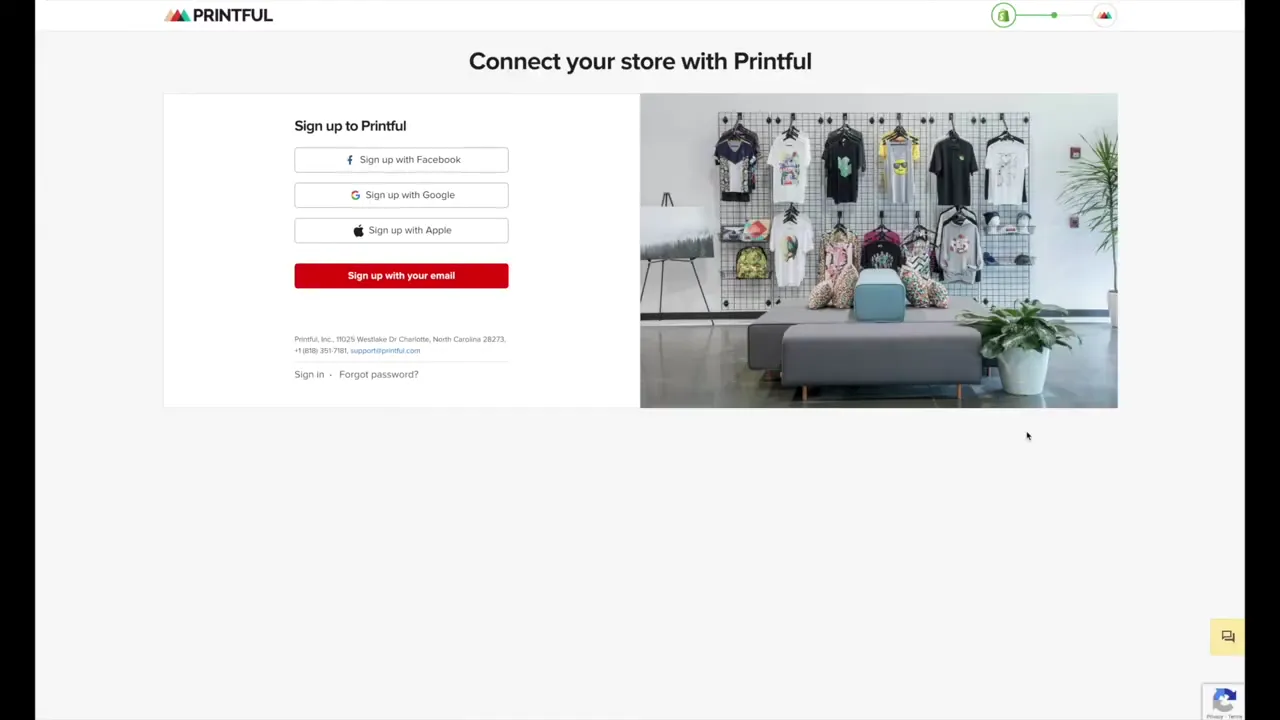
- Sign in to your Printful account.
- Confirm the connection.
Why Connect Printful to Shopify
If you’re looking to open a print on demand store, using Shopify and Printful together is a must. Once the Printful app is installed, your Shopify store and your Printful account are connected, so you can start adding Printful products to your store. Here’s what you’ll need before you start:
- A Shopify store: It can be a live store or one you haven’t launched yet that is still password protected.
- A Printful account: You’ll sign in to it during the install.
How to Add the Printful App to Shopify
There are two ways to add the app, and both end up on the same install page. The video was recorded in 2022, so your Shopify admin may look a little different.
Method 1: From Your Shopify Admin
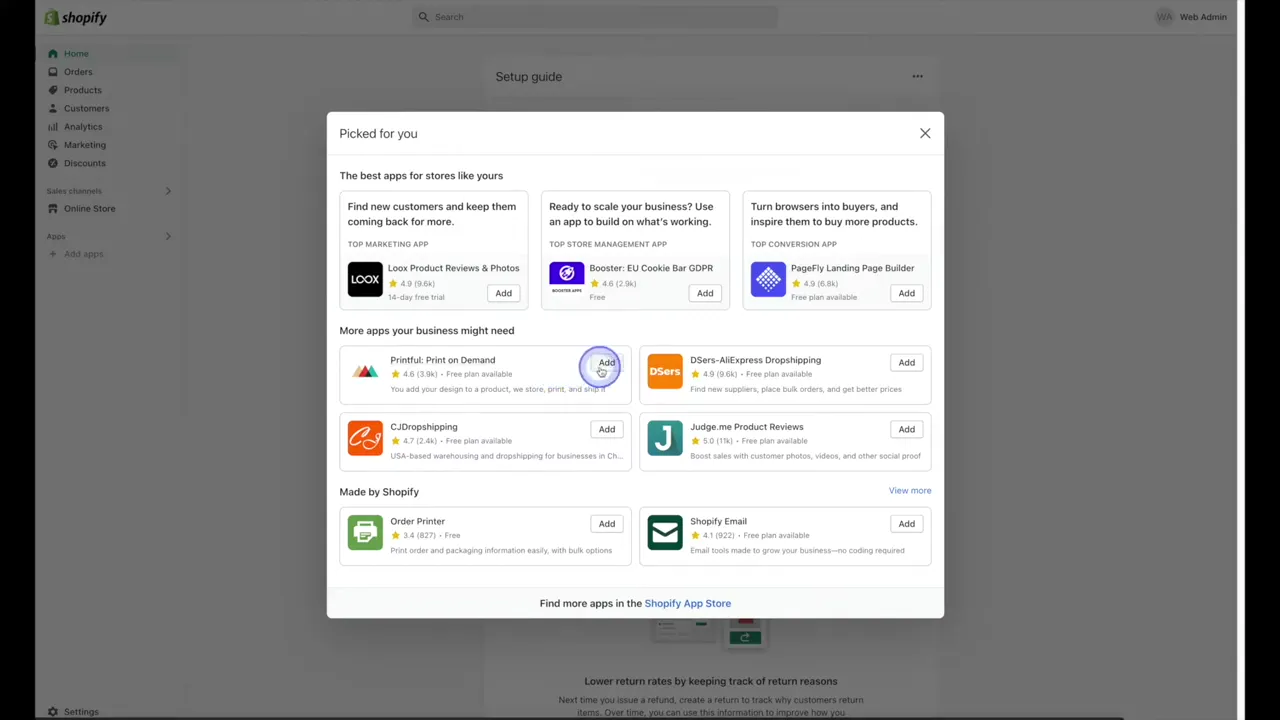
- Once you’re logged into your Shopify admin, click on Add apps in the left-hand menu.
- Shopify will suggest a few apps it thinks you might be interested in. If the Printful: Print on Demand app shows up, click the Add button on the right-hand side.
- A new tab will open. Skip ahead to Step 3 below.
Method 2: From the Shopify App Store
- If you don’t see Printful in the suggestions, go to the Shopify App Store instead. Because Printful is such a popular app, it will likely show up on the App Store home page, so just click on it.
- The App Store listing gives you a little more detail about what the app has to offer. On the left-hand side you can also view Printful’s demo store to look around and check out their products.
- When you’re ready, click Add app. This takes you to the same install page you’d see from Method 1.
Step 3: Install the App
Click the Install app button in the top right corner. This is where your Shopify store connects to your Printful account.
Step 4: Sign In to Printful and Confirm
- If you already have a Printful account, click the Sign in link at the bottom.
- Log into your Printful account.
- Confirm the connection.
And there you have it! Your Shopify store is now connected to your Printful account.
Next up: learn how to create Printful products for your Shopify store.
Frequently Asked Questions
No. You can connect Printful to a store that is live or one that you haven’t launched yet and is still password protected.
Click Add apps in your Shopify admin and look for Printful in the suggestions. If it isn’t there, search the Shopify App Store, where it will likely show up on the home page.
After you click Install app, sign in to Printful and confirm the connection. Your Shopify store is then connected to your Printful account.
For more tutorials, visit our Printful Tutorials page or subscribe to our YouTube channel. You can also signup for our email newsletter below for free resources and the latest tutorials!