





Quick Steps
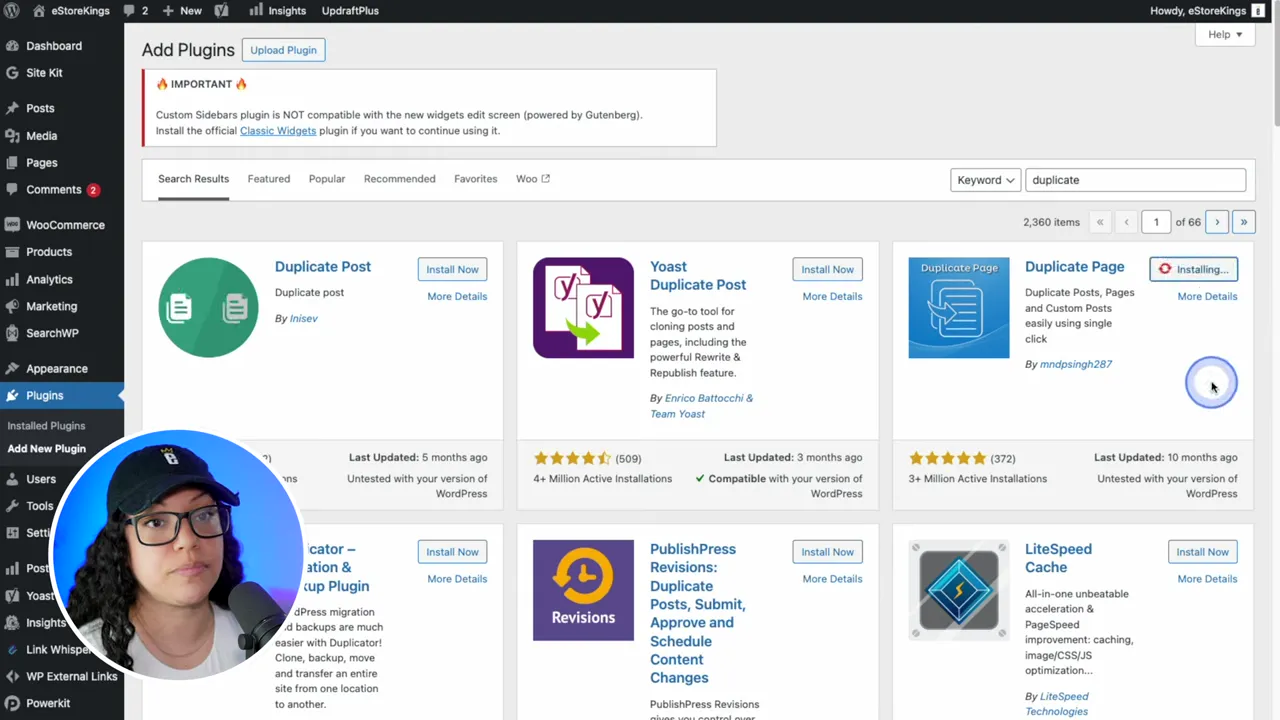
- Go to Plugins > Add New Plugin and search for duplicate.
- Install and activate the Duplicate Page plugin.
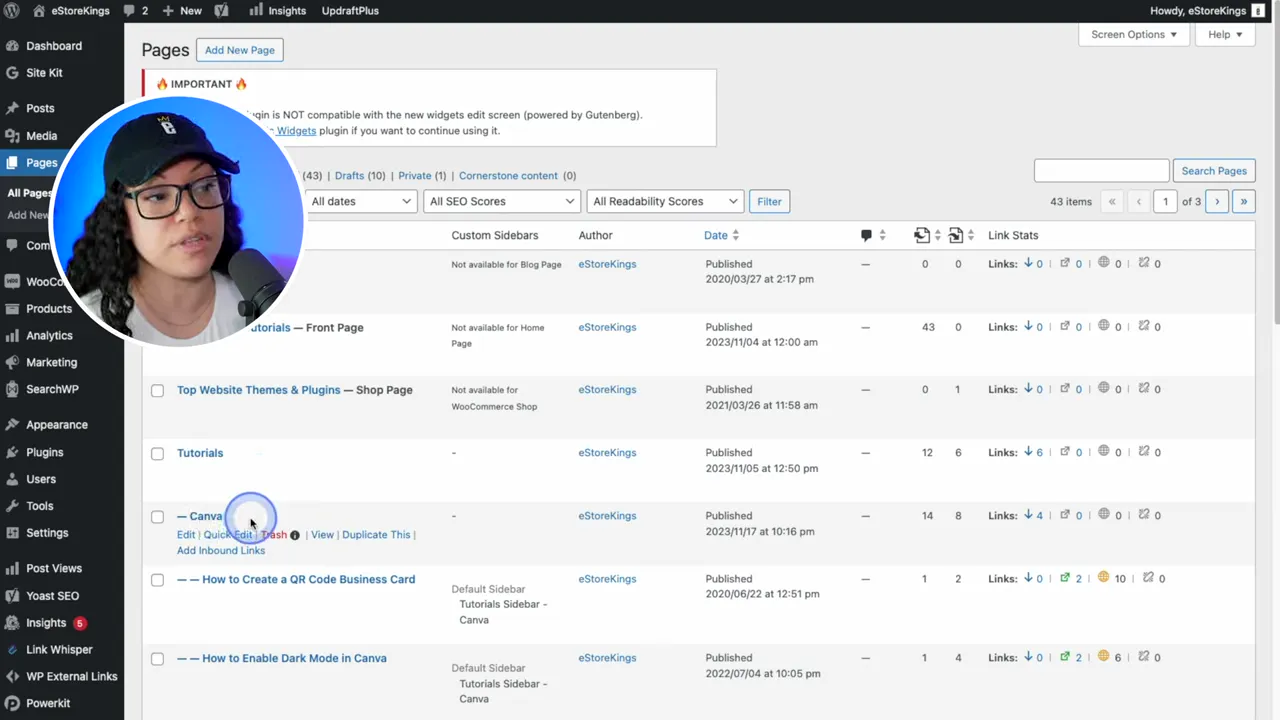
- Go to Pages, hover over a page and click Duplicate This.
- Open the new draft and replace the title, text, images and links.
- Preview it, then publish when you’re ready.
Why Duplicate a Page Instead of Copying It by Hand
When you’re working on a WordPress website, knowing how to duplicate a page can save you a ton of time and potentially a bunch of headaches. DigitalGrl calls the plugin in this tutorial one of her favorites, because she has installed it on just about every WordPress site she has built for many years. Here’s why duplicating beats rebuilding:
- Saves time: Instead of rebuilding a page piece by piece, you start with an exact copy.
- Fewer layout mistakes: When you copy a page over manually, it’s hard to make sure every element is the exact same. You can run into things like thrown off padding or different font sizes.
- Safe to experiment: The copy is saved as a draft, so nothing goes live until you publish it.
- Works for posts too: The same link shows up on your posts, not just your pages.
How to Duplicate a Page or Post in WordPress
In the video, DigitalGrl copies the Canva Tutorials page on eStoreKings to start a new WordPress Tutorials page.
Step 1: Install the Duplicate Page Plugin
- In your WordPress admin, hover over Plugins and click on Add New Plugin.
- In the search field in the top right, type duplicate.
- There are many to choose from. Find the one called Duplicate Page and click Install Now.
- Once it’s done installing, click Activate.
Step 2: Duplicate Your Page
Head back to Pages and hover over the page you want to copy. You’ll now see a Duplicate This link. Click it. The copy is saved as a draft, so it won’t go live right away and you’ll have time to edit it before you publish.
Step 3: Open the Copy
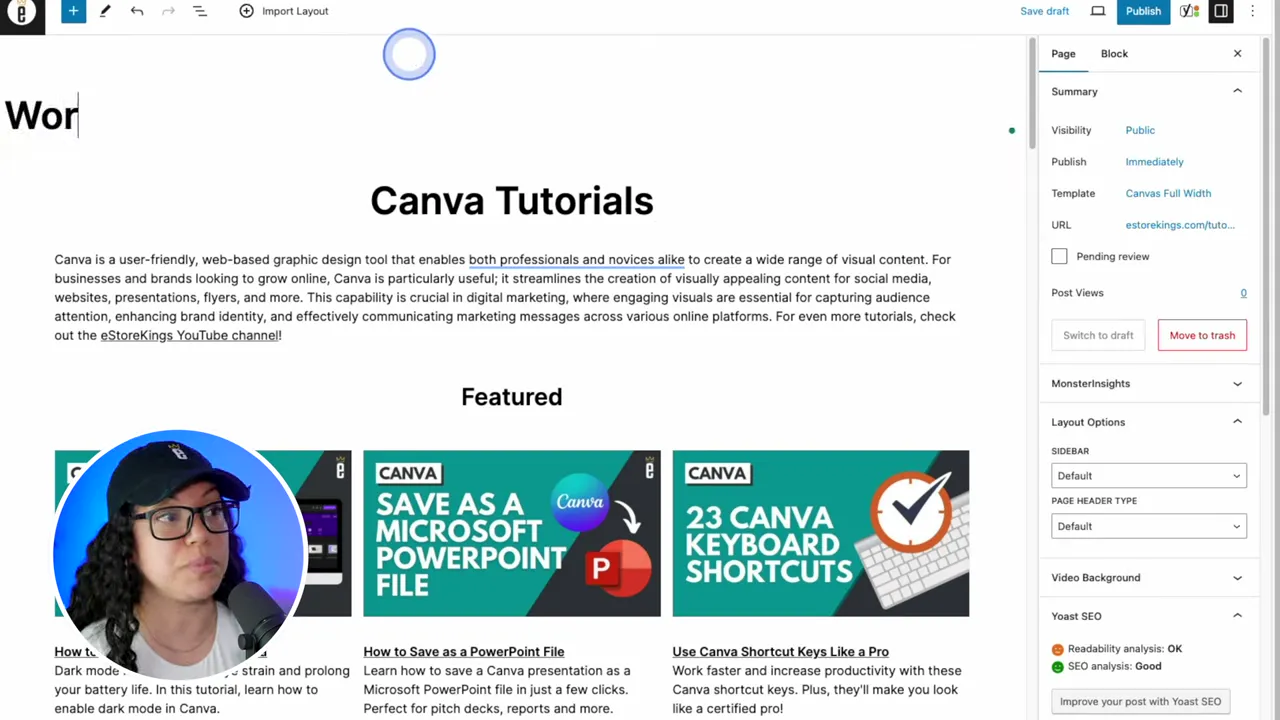
You’ll see a new draft with the same name as the original. Click the page name or the Edit link to open it. You now have an exact copy of the original page to work from.
Step 4: Swap in Your New Content
- Replace the page title and any headings.
- Replace the text and links so they match your new page.
- To swap an image, select it, click Replace, then either upload a new image or choose Open Media Library, click the image you want and click Select.
Step 5: Preview Your Page
Click Preview in new tab to see how it’s looking so far. Keep swapping out content until the page is ready, then publish it.
Step 6: Duplicate a Post
It’s not just for pages. Go to Posts in your WordPress admin and hover over an existing post. You’ll see the same Duplicate This link.
Want more ways to work faster in WordPress? Browse our WordPress Tutorials.
Frequently Asked Questions
No. With the Duplicate Page plugin, the copy is saved as a draft, so you can edit it before you publish.
Yes. Once the plugin is active, hover over any post under Posts and click Duplicate This.
Copying a page by hand is slow, and it’s easy to end up with different padding, font sizes and other small differences. A duplicate is an exact copy.
For more tutorials, visit our WordPress Tutorials page or subscribe to our YouTube channel. You can also signup for our email newsletter below for free resources and the latest tutorials!