




Quick Steps
- Go to Users > Add New.
- Enter a Username and Email (the other fields are optional).
- Keep the generated password or create your own.
- Leave the notification box checked so the new user gets an email.
- Choose a Role and click Add New User.
Why Add Other Users to Your WordPress Website
When you install WordPress, an administrator account is created for you by default. As your website grows, you may want other people to help you build it, maintain it and contribute content. Giving each person their own login, with the right user role, lets them do their part. Here’s why it’s worth setting up properly:
- Help building and maintaining your site: A web developer can get the level of access they need to make changes for you.
- Help with content: Writers can create posts without having access to everything else.
- The right level of access: User roles give different people different levels of access to your website and its content.
- You stay in control: You can go back into a user’s account later to change their role or add other information.
How to Add a New User in WordPress
The video above was recorded in 2021, so your screen may look a little different. The steps are the same idea.
Step 1: Go to Add New User
From your WordPress admin, head over to Users in the left-hand menu and click on Add New.
Step 2: Enter the User’s Details
- Username and Email are mandatory.
- First Name, Last Name and Website are optional.
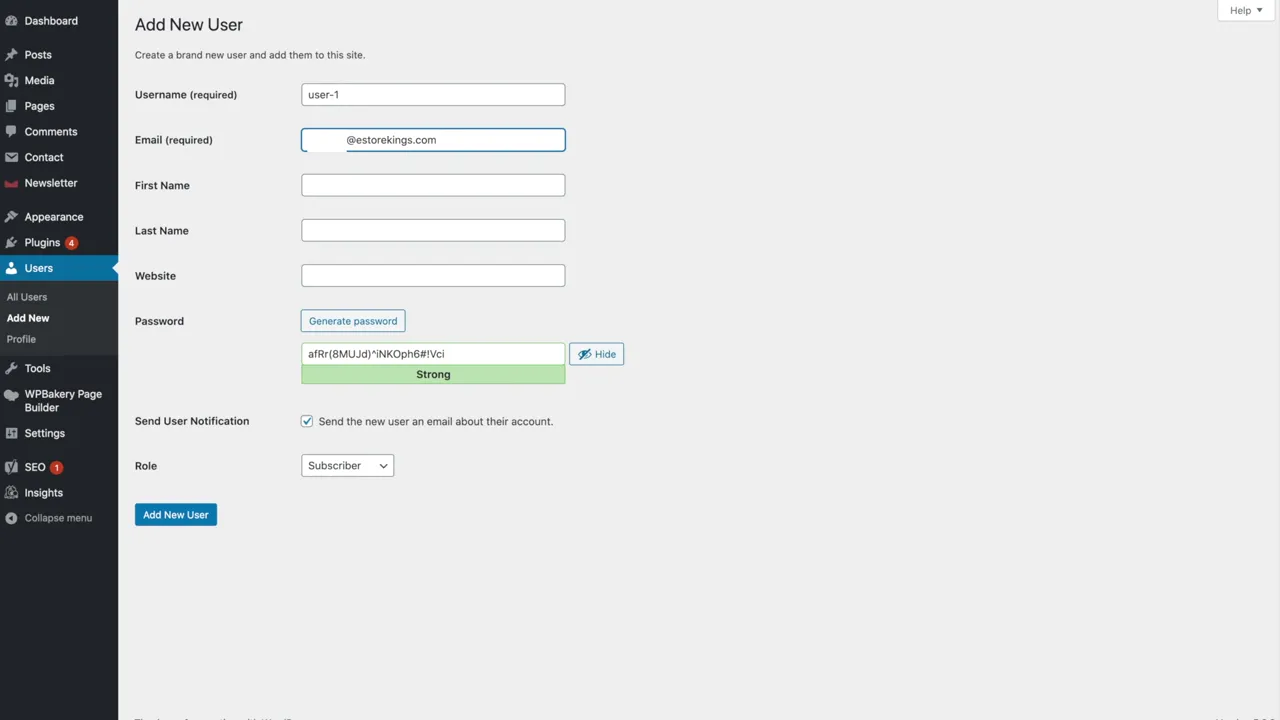
Step 3: Set a Password
You can leave the password that WordPress generated for you, generate a new one, or create your own.
Step 4: Send the New User an Email
Leave the notification box checked. That way the new user will receive an email letting them know their new account is set up. They can then reset their password to their liking.
Step 5: Choose a Role and Add the User
Pick the role that fits what this person needs to do (the roles are explained below). For example, a web developer working on your site will need a very high level of access. Then click Add New User.
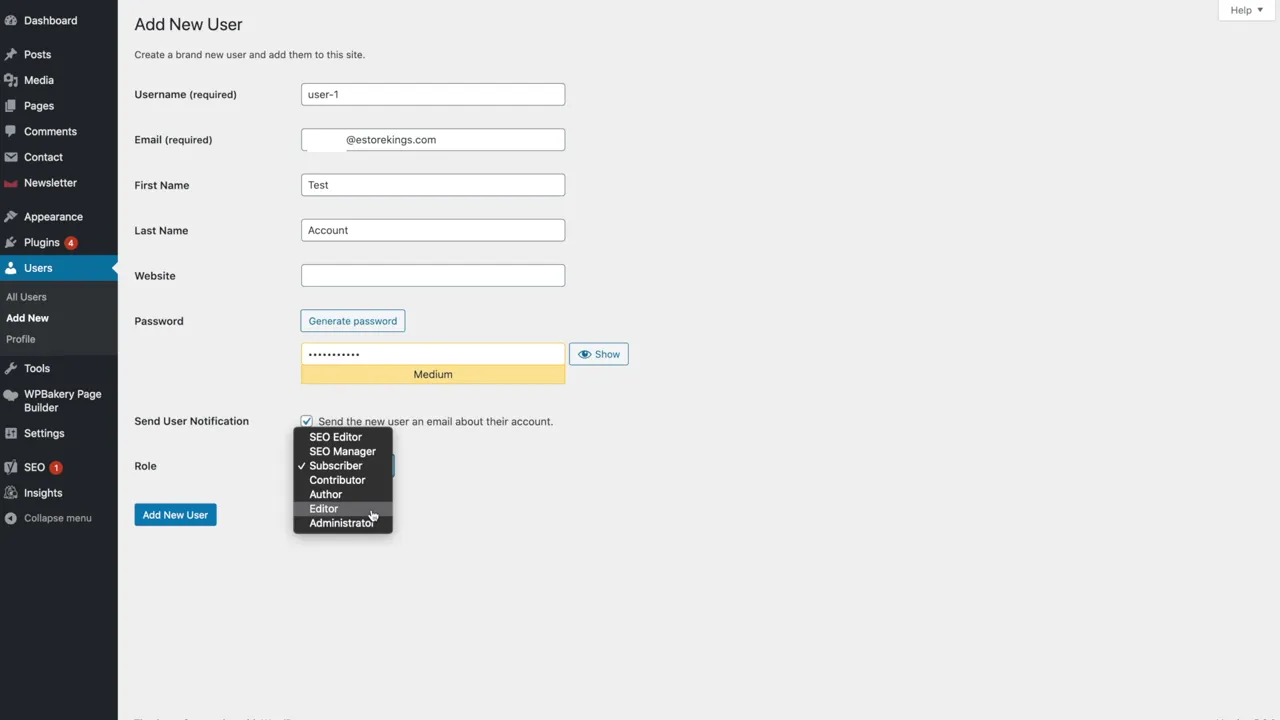
If you see extra roles in the list, they could come from a plugin you’re using. In the video, the extra roles come from an SEO plugin.
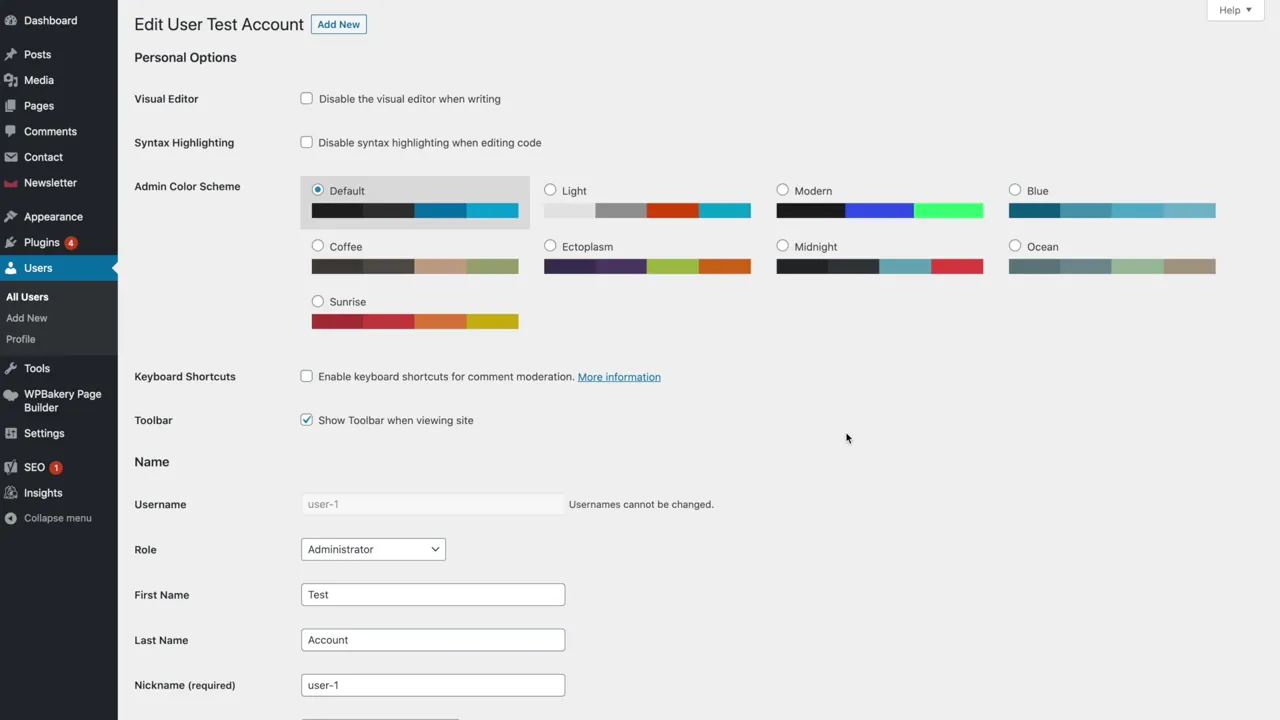
Step 6: Change a User’s Settings Later
Even after the account is created, you can still go into the user’s account and change certain settings. For example, if you decide they don’t need administrator access after all, you can change their role to editor. You can also add other information.
WordPress User Roles Explained
In this video, DigitalGrl walks through the five main user roles you’ll see when setting up a WordPress website, from the most access to the least.
Administrator
The highest level of permission. An administrator can access basically everything on the website. They can add and remove users and change user roles, including giving other people the administrator role. They can create, edit and publish posts and pages, change the website settings, add and remove plugins and themes, make theme customizations and even edit code in the WordPress site files.
Because you’re essentially handing over the keys to your website, only give this role to someone who is very trustworthy and knows their way around the WordPress back end. The last thing you want is someone accidentally deleting something or breaking part of your site.
Editor
An editor can edit and publish all posts and pages, not only their own but other people’s as well. They can also reply to comments, set tags and categories on blog posts and upload media.
Author
An author can create, edit, publish and delete blog posts, but only their own. They can’t touch anyone else’s posts, and they can’t create or edit pages at all. Authors can add files and images to their posts (like a PDF for download) and embed videos.
Contributor
A contributor can create and edit their own blog posts but can’t publish them. Someone with a higher role, like an administrator, has to approve and publish the post. Contributors also can’t upload files or images. Once a post is published, the contributor can no longer edit it, but they are still credited as the author.
Subscriber
The lowest level of access. Subscribers can read your content and leave comments (if you’ve turned comments on), but they can’t write, edit or publish anything.
Looking for more ways to manage your site? Browse our WordPress Tutorials.
Frequently Asked Questions
Only the username and email address are required. First name, last name and website are optional.
An author can publish their own posts and add images and files. A contributor can write and edit their own posts but can’t publish them or upload files and images. Someone with a higher role has to publish their work.
Yes. Go into the user’s account and change their role, for example from administrator to editor.
Extra roles usually come from a plugin you’re using, like an SEO plugin.
For more tutorials, visit our WordPress Tutorials page or subscribe to our YouTube channel. You can also signup for our email newsletter below for free resources and the latest tutorials!