





Quick Steps
- Go to Products and click the checkbox at the top of the list.
- Click Bulk edit.
- Click into a field, type the new value and press Enter to move down the list.
- Use Columns to add any other fields you want to change, like Tags.
- Click Save in the top right corner.
Why Bulk Editing Saves You Time
Building and running a Shopify store is a lot of work, so it helps to save time wherever you can. When you need to make the same kind of change to a bunch of products, opening each product page on its own and updating it one by one adds up fast. Shopify’s bulk editor lets you make all of those changes from one screen. Here are a few reasons to use it:
- Faster updates: Change the price of every product in a list in one shot instead of editing each product separately.
- Everything in one view: The bulk editor lays out your products in rows, along with details like their status, product category and vendor.
- More than prices: You can add other fields, like tags, from a long list of columns.
- Copy and paste: Type a value once, then copy and paste it into the fields below to move even faster.
How to Bulk Edit Products in Shopify
Everything below happens on the Products page of your Shopify admin. The video was recorded in 2023, so a few buttons may look a little different on your screen.
Step 1: Select Your Products
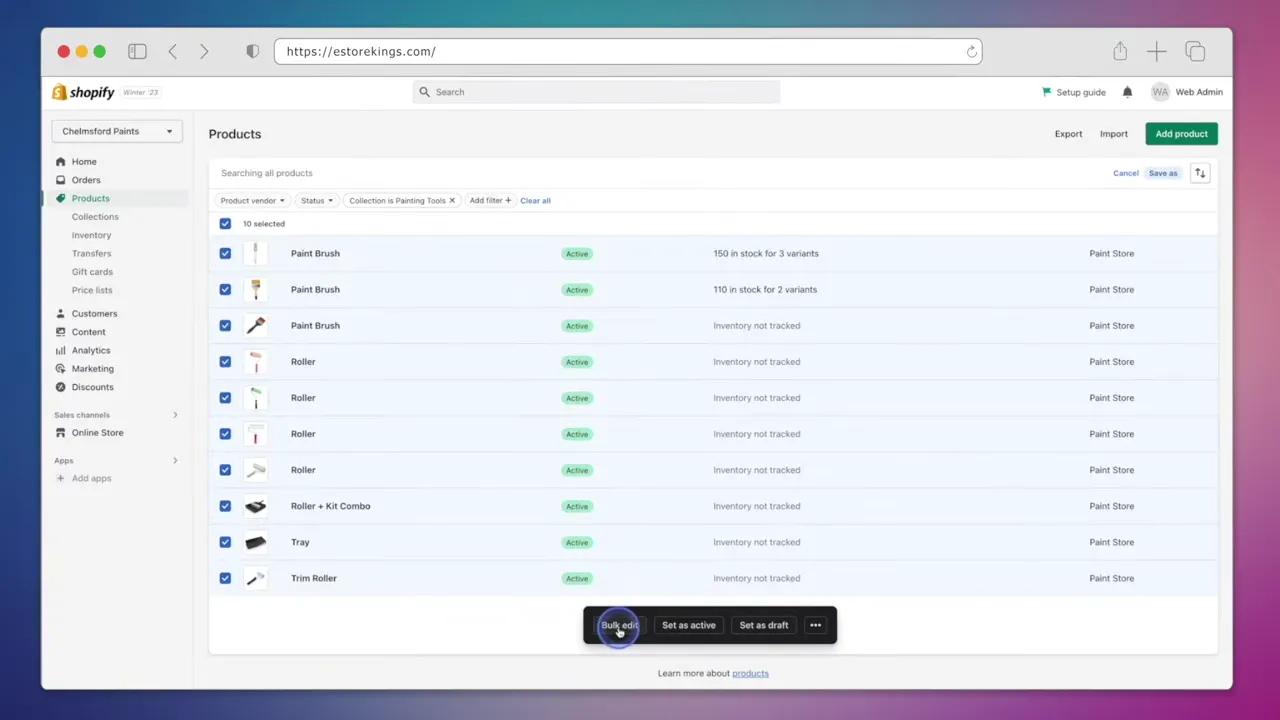
- From your Shopify admin, go to Products.
- Click on the checkbox at the top of the product list to select the products in the list.
- Click on Bulk edit at the bottom of the page.
Step 2: Update Your Products in the Bulk Editor
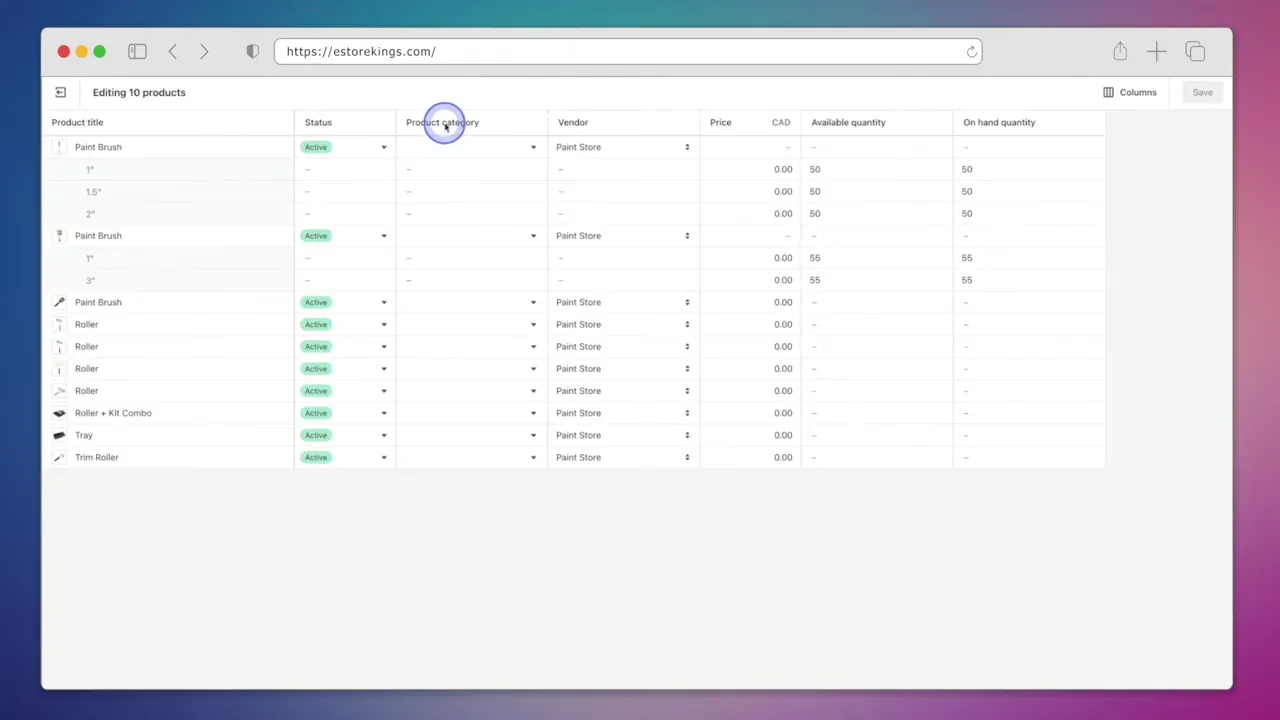
You’ll now see all of the products you selected, along with things like their Status, Product category and Vendor. In the video we update the price of every item:
- Click on the first field you want to change and replace the amount.
- Press the Enter key to move down to the next line.
- Keep going until every line is updated.
Step 3: Add the Columns You Need
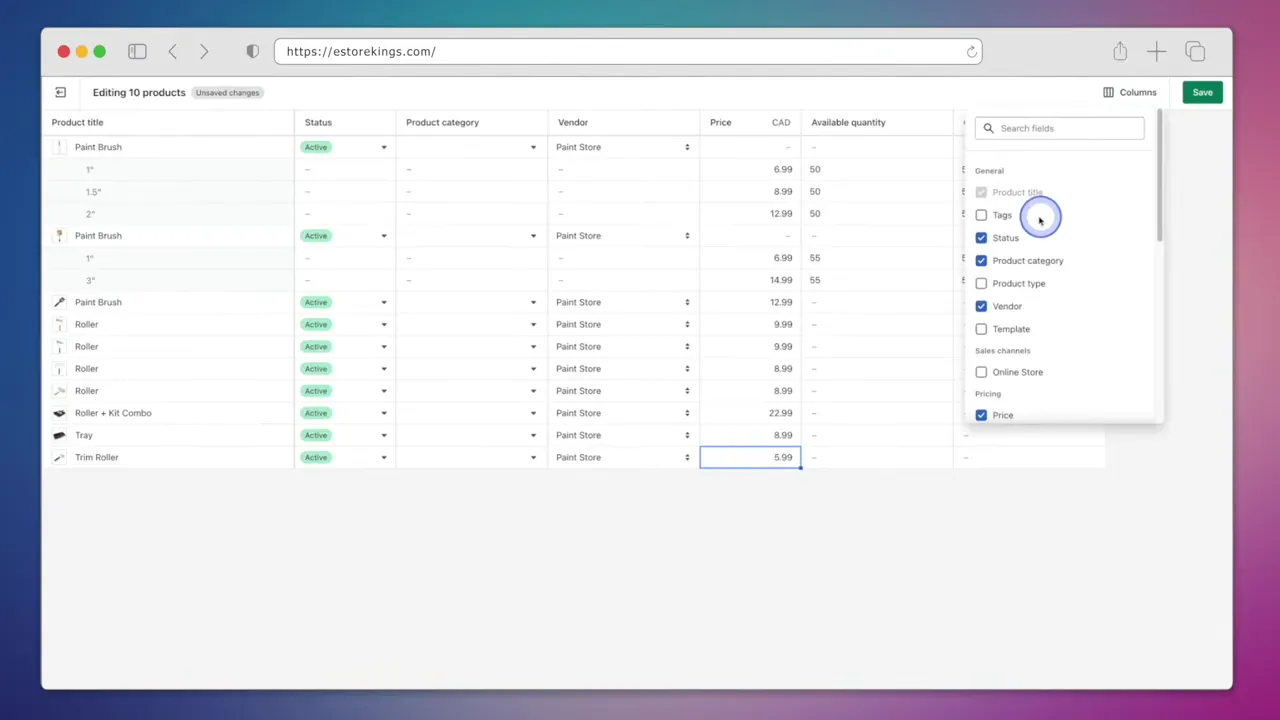
Don’t see the detail you want to edit? Click on Columns in the top right corner of the bulk editor. There’s a long list of fields to choose from. Tick the ones you’d like to update and they’ll show up as new columns. In the video we add Tags.
Step 4: Add Tags to Several Products
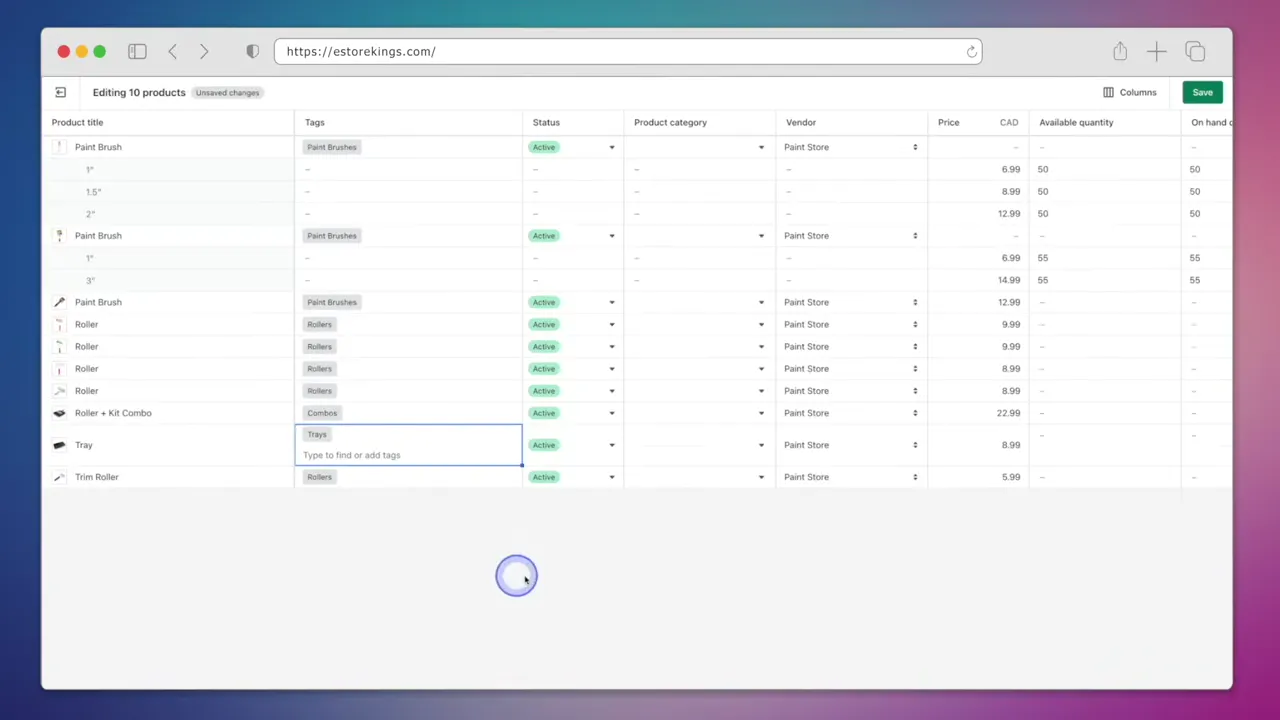
- If a tag already exists in your store, click on the field and choose it from the list.
- If the tag is brand new, type it in yourself.
- To save time, copy the tags from one field and paste them into the next few fields.
Step 5: Save Your Changes
Once you’ve made all of your bulk edits, head up to the top right corner and click Save. All of the prices and tags are now updated for the products you selected.
Step 6: Check Your Work
- Head back to your product list and click on one of the products you updated. You should see the new tag and the new price.
- Visit your online store and refresh the page. Your products will now show their updated prices.
Need to change even more at once, or move products to another store? Learn how to export and import Shopify products in bulk using a CSV file.
Frequently Asked Questions
No. Select your products on the Products page, click Bulk edit, then change each price in one list and click Save.
Yes. In the bulk editor, click Columns in the top right corner and pick the fields you want to edit from the list, such as Tags.
Yes. If the tag already exists you can choose it from the list. If it doesn’t exist yet, just type it in.
Open one of the products you changed to check its tag and price, then refresh your online store to see the new prices on your product pages.
For more tutorials, visit our Shopify Tutorials page or subscribe to our YouTube channel. You can also signup for our email newsletter below for free resources and the latest tutorials!