




Quick Steps
- In Canva, search for Instagram post sets.
- Pick a set and click Use this template.
- Replace the text, fonts and photos on each post.
- Use the grid view to see your posts side by side.
- Duplicate posts you love and mix in plain photos.
Why Design Your Instagram Posts as a Set
Have you ever looked at someone’s Instagram feed where every image matches, the graphics look professional and there’s a common design throughout? There’s a good chance they used Canva. The trick is to start with a template that has a whole set of matching post layouts, instead of one post at a time.
- A feed that looks put together: Posts in a set share common colors, fonts and even design elements.
- All in one document: Canva places every post in the set into one document, so you can work through them one by one.
- Easy to expand: Duplicate a post you like and tweak it to add to your collection.
How to Design a Matching Instagram Feed in Canva
The video was recorded in 2021, so Canva may look a little different on your screen. In the video, DigitalGrl designs a set for a travel blogger.
Step 1: Search for Instagram Post Sets
If you go to Templates > Instagram Post, many of the options are single posts. To find templates that include a whole set of matching posts, type Instagram post sets into the search field instead.
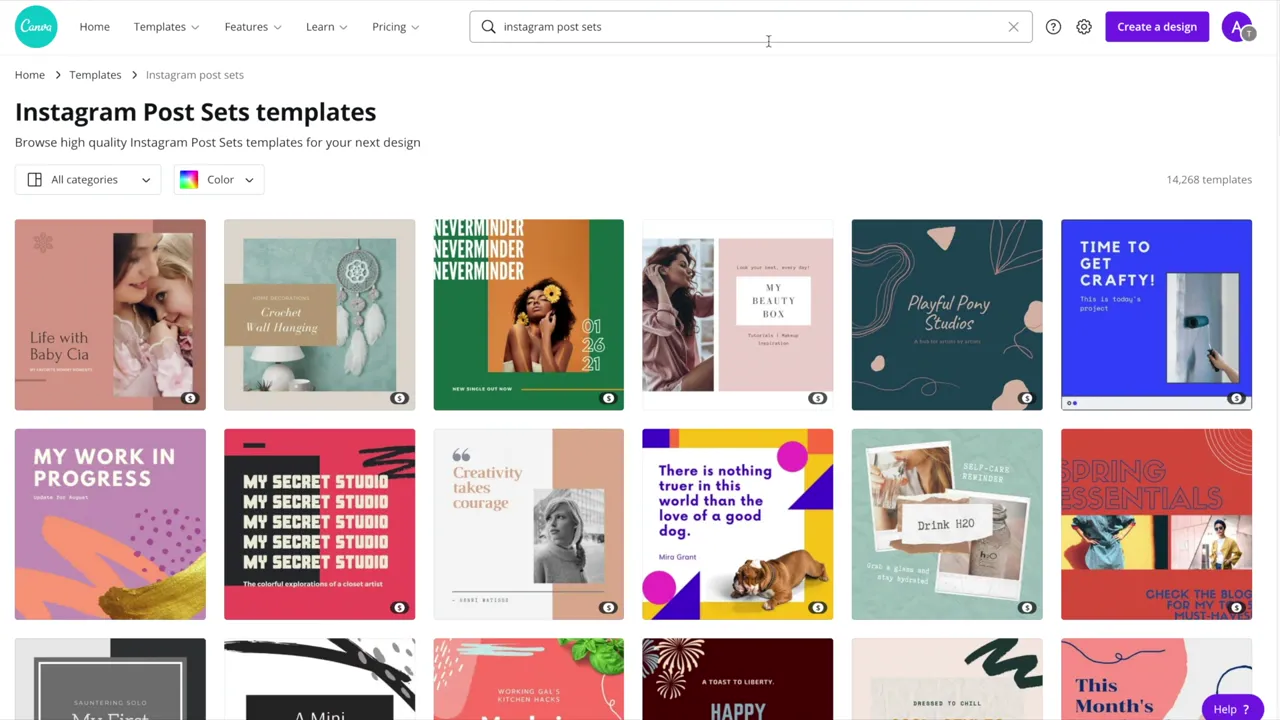
Step 2: Pick a Set
Have a good look through the options. Look for sets where the colors, fonts and design elements match from post to post. When you find one you like, click Use this template. Canva places all of the posts in your document.
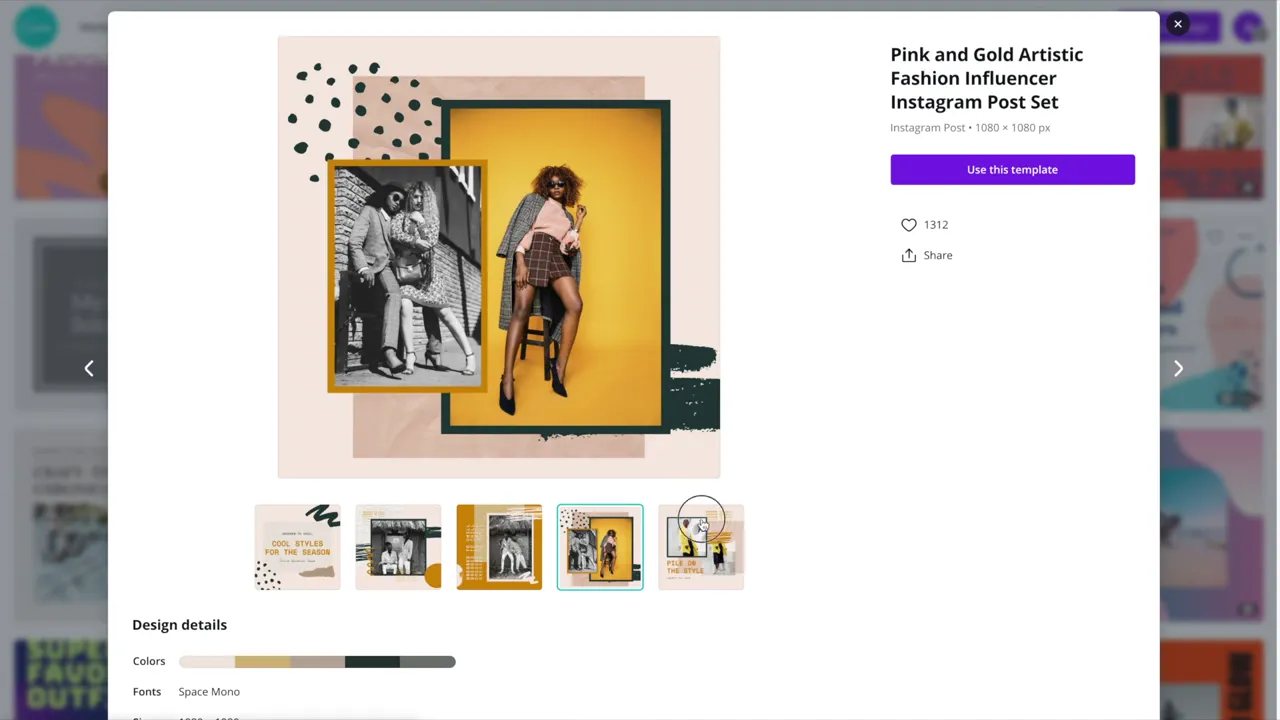
Step 3: Replace the Text and Fonts
- Double click on the text you’d like to edit and type your new text.
- To make fonts match, click on the text and check the font dropdown at the top. In the video, the top and bottom text use the same font, but only the top is bold and uppercase, so DigitalGrl makes both bold and uppercase.
- To change a background or element color, click Color at the top and pick a default color or use the color wheel.
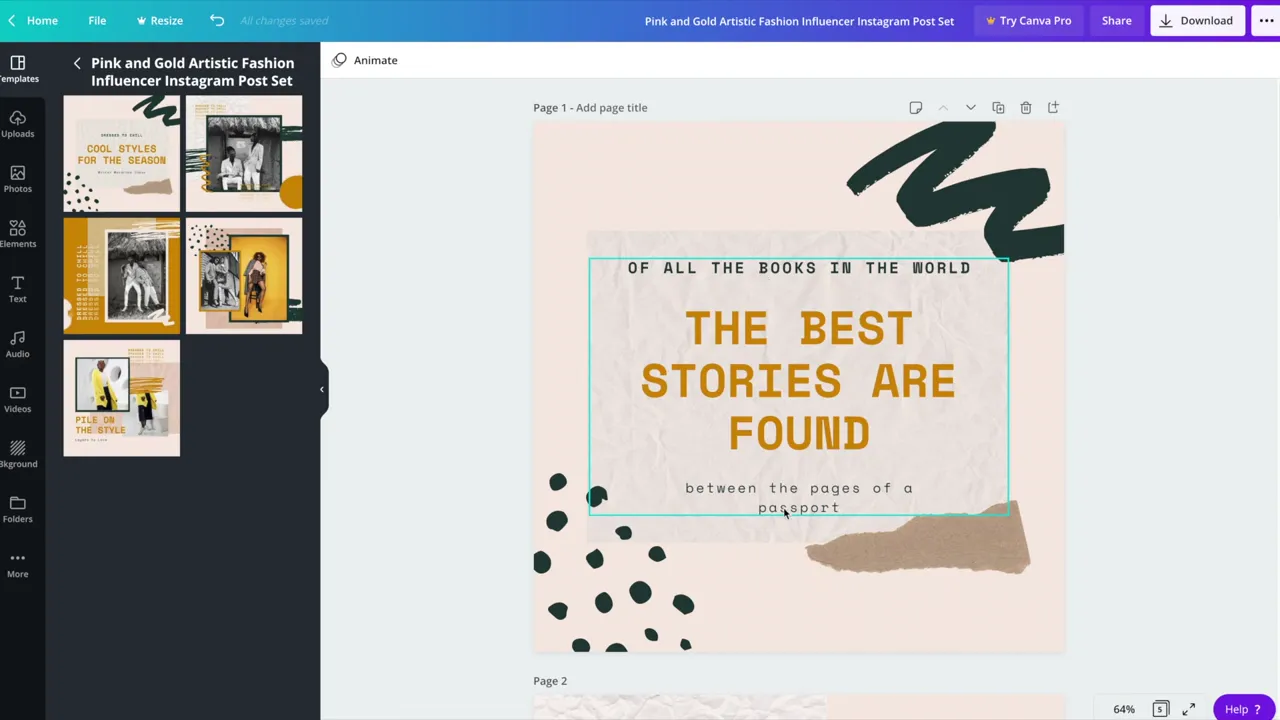
Step 4: Replace the Photos
- To use your own photo, go to the Uploads tab and upload a file from your computer. Or click the Photos tab to search Canva’s stock photos.
- Drag and drop the photo onto the post.
- Double click to reposition or resize it.
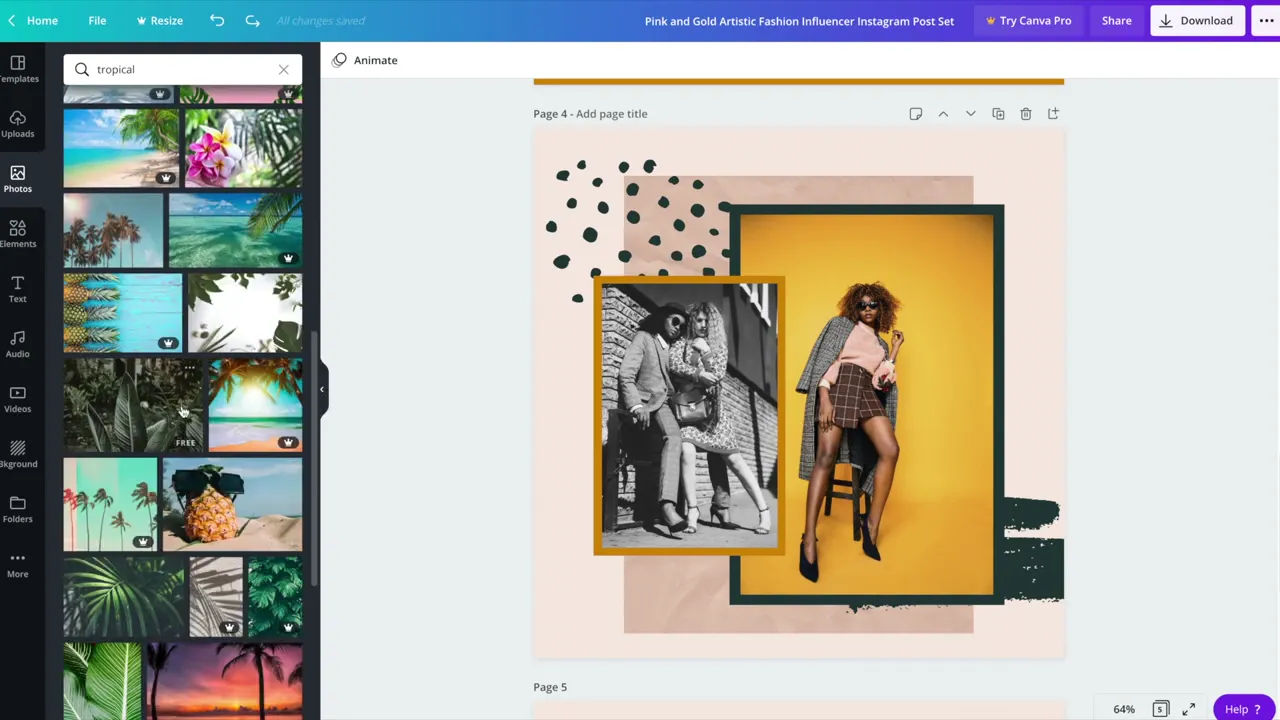
If a template photo has a filter on it (one in the video is black and white), click the image, then Adjust, and change the settings. You can even make the photo a little more vibrant.
Step 5: Fine Tune the Layout
To move a group of elements, click on it and nudge it with your arrow keys. Hold down Shift while you press the arrow keys to move faster. Work through each post in the set the same way.
Step 6: Check Your Posts in Grid View
Click the grid view icon at the bottom of the editor to see your posts side by side. This shows you how well they go together as a feed.
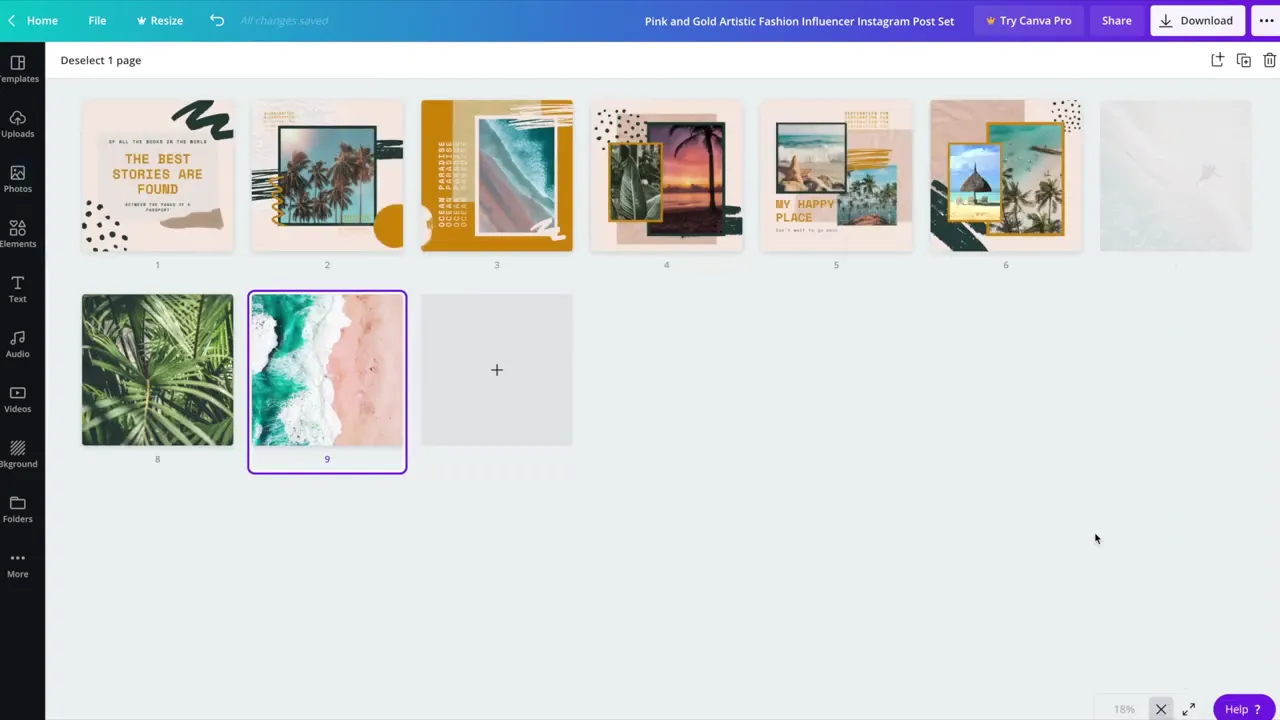
Step 7: Duplicate a Favorite Post
- Select a post you really like and click the Duplicate button.
- Move the copy to where you want it and change it a little: move, rotate or resize elements and swap the photo.
- To change a frame or shape color, click it, then click the color. Canva shows your document colors so the new post still matches.
Step 8: Mix In Plain Photos
You may not always want a graphic in every post. Add a new page, add a photo and make it full size. Then, in grid view, drag your plain photo posts in between the designed posts. Sprinkling in plain images helps fill up your feed.
Love designing in Canva? Browse our Canva Tutorials for more.
Frequently Asked Questions
Search for Instagram post sets. These templates include several matching posts in one design.
Click the grid view icon at the bottom of the editor to see your posts side by side.
Not necessarily. In the video, DigitalGrl mixes plain photos in between the designed posts to fill out the feed.
For more tutorials, visit our Canva Tutorials page or subscribe to our YouTube channel. You can also signup for our email newsletter below for free resources and the latest tutorials!