



Quick Steps
- In Canva, go to Templates and choose LinkedIn Banners (or search for them).
- Click a template, then click Customize this template.
- Replace the name, title and photo with your own, keeping the left side clear.
- Adjust the colors so your text is easy to read.
- Click Share, then Download, and upload the file to LinkedIn.
Why a Custom LinkedIn Banner Helps Your Profile Stand Out
Your LinkedIn banner is the big image across the top of your profile, and a good one can make your profile stand out. Canva has tons of LinkedIn banner templates to start from, so you don’t have to design one from scratch. In the video, DigitalGrl makes three different banners to show you what’s possible and give you a few ideas for your own. A few reasons to make one:
- Quick to make: Start with a template, swap in your details and in just a few clicks you’ve got a banner ready to go.
- Looks put together: Canva can pull colors from the image in your template, which helps keep everything uniform and pleasing to the eye.
- Matches your brand: You can filter templates by color and even enter the exact hex code from your branding or logo.
- Shows who you are: It’s becoming more common to include a photo of yourself in your LinkedIn banner.
How to Make a LinkedIn Banner in Canva
The video was recorded in 2022, so a few menus in Canva may look a little different on your screen. The steps are the same idea.
Step 1: Find the LinkedIn Banner Templates
Once you’re logged into Canva, head up to Templates in the top menu and then down to LinkedIn Banners. Don’t see it there? That’s totally fine. This menu changes depending on what’s popular at the time, so just type “LinkedIn banner” into the search bar instead.
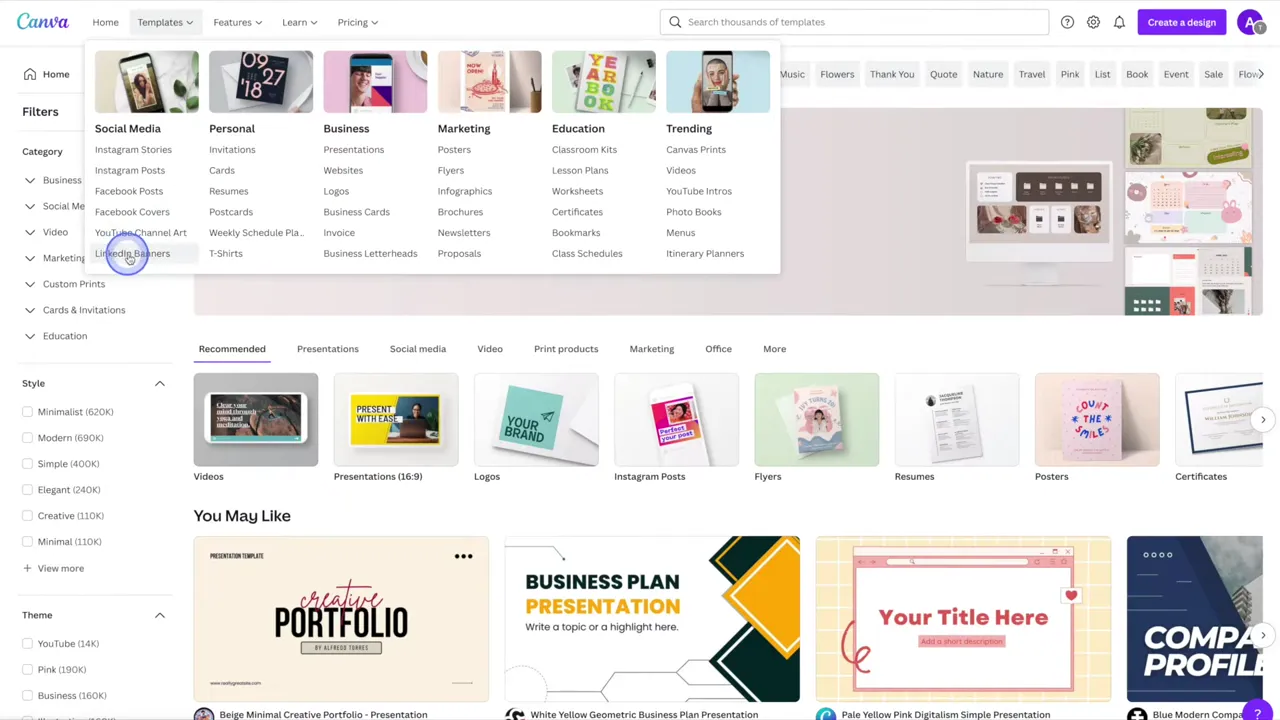
Templates marked with a little crown are Pro templates.
Step 2: Choose a Template
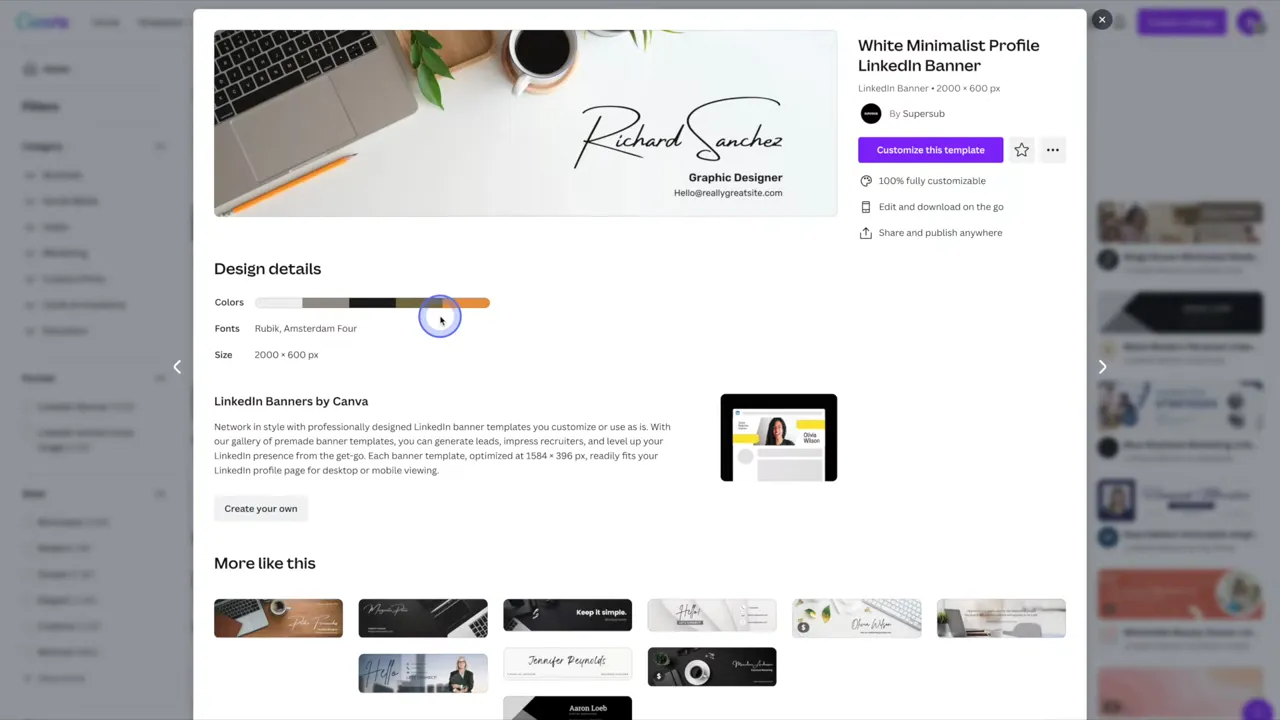
Click on a template you like. Canva will show you a few more details, like its colors, fonts and size, plus related templates at the bottom. If you’re happy with it, click Customize this template.
Step 3: Replace the Text
- Click on the name and type your own.
- Change the title, then adjust the font size and color.
- Move things around and resize them by hand if you’d like.
When you change colors, Canva shows colors pulled from the background image, which helps keep your banner looking uniform.
Step 4: Keep the Left Side Clear
When you upload your finished banner to LinkedIn, your profile picture sits on the left. Any text or graphics on the left side may end up covered by it. That’s why it’s a good idea to pick templates that keep most of their content on the right side or in the center.
Step 5: Add Your Photo
- Click on the photo in the template and delete it.
- To use a photo of yourself, click on Uploads on the left side and follow the prompts to upload your image. You can also pick a stock photo.
- Drag and drop the photo onto the template.
- Double click the photo to move it around or resize it until it sits just right.
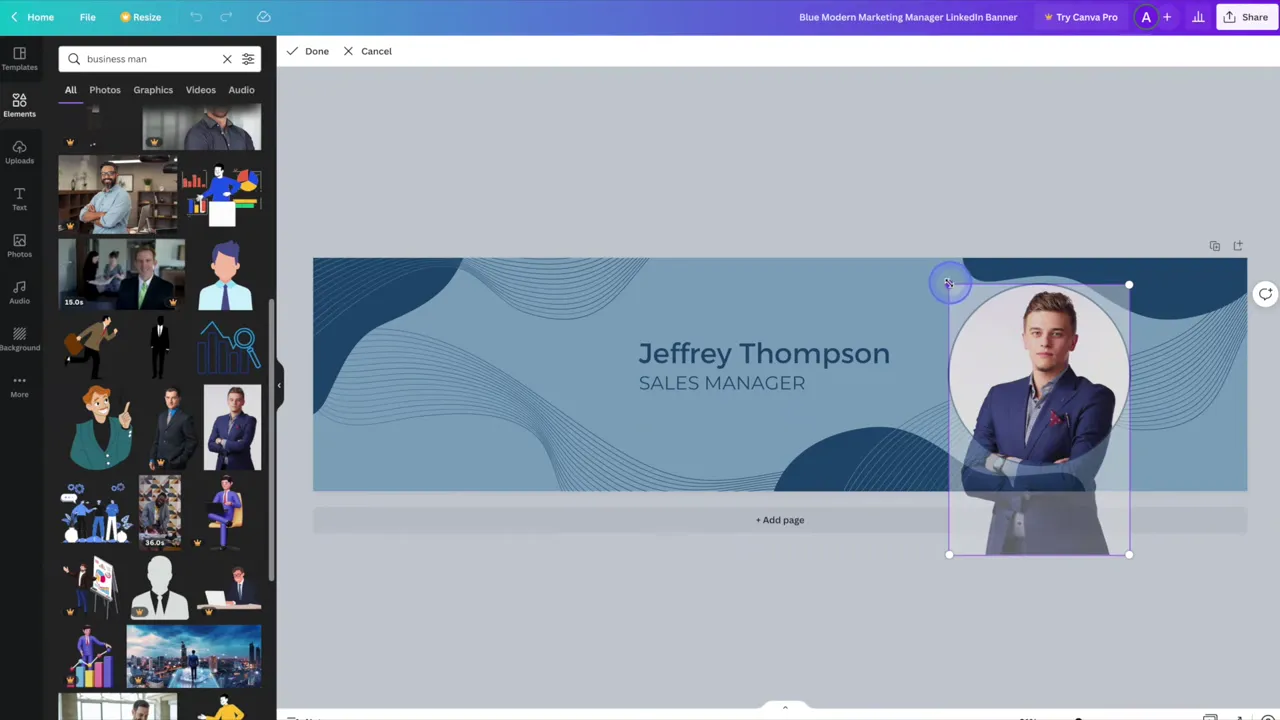
Tip: Use a different photo from the one you use as your profile picture. Having the exact same picture in both spots can look a little silly.
Step 6: Play Around with the Colors
- Click on the element you want to change, like the background, then click the color at the top of the editor.
- Pick from the document colors, colors pulled from your photo, or choose a custom color.
- If a new color makes your text hard to read, select the text boxes (hold down Shift to select more than one) and change the text color at the top.
Looking for a template in your brand colors? Go back to the LinkedIn banner templates and use the filters on the left side. You can filter by category, style and color, choose from the color options, enter a hex code or select a color freely. Canva will then show templates that contain a similar color.
Step 7: Download Your Banner
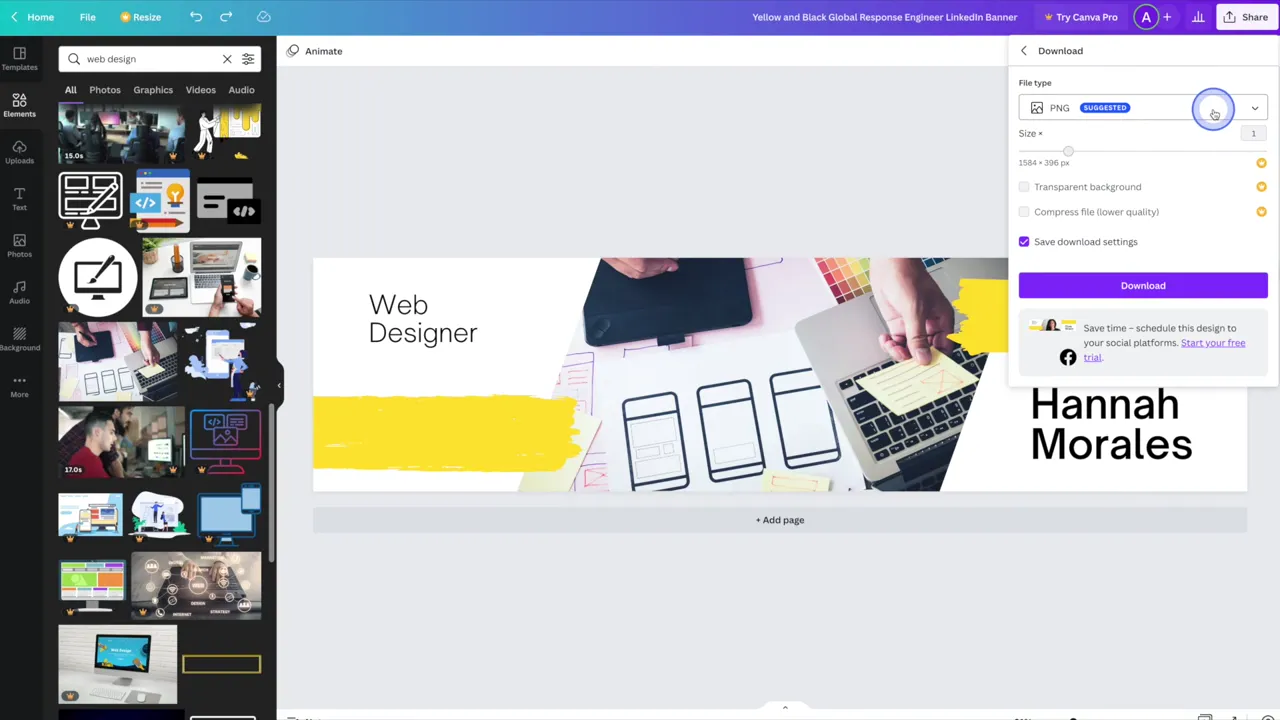
- Click the Share button in the top right corner.
- Click Download.
- Choose PNG or JPEG. Canva suggests PNG.
- Click Download and save the file to your computer.
- Upload your new banner to your LinkedIn profile.
Frequently Asked Questions
That menu changes depending on what’s popular at the time. Type LinkedIn banner into the Canva search bar to find the templates.
Your profile picture sits on the left side of your banner. Keep your text and graphics on the right side or in the center so they stay visible.
It’s better to use a different photo. The exact same picture in both spots can look a little silly.
Either works. Canva suggests PNG, and that’s what we use in the video.
For more tutorials, visit our Canva Tutorials page or subscribe to our YouTube channel. You can also signup for our email newsletter below for free resources and the latest tutorials!